
RCLLC Blog | Texas Hill Country & San Antonio Travel
Blog
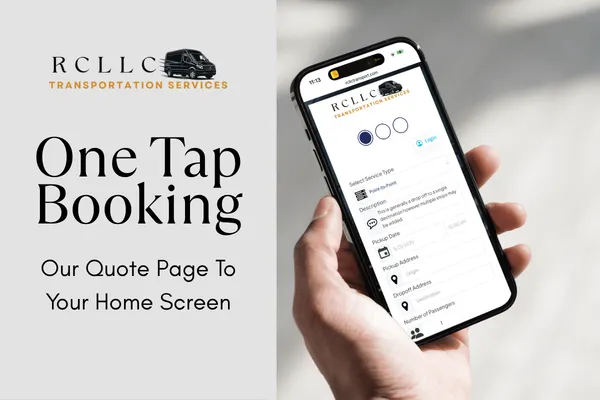
How to Add the RCLLC Transportation Quote Page to Your Phone for One-Tap Booking
Save the RCLLC quote page to your home screen and request your next VIP experience in seconds.
Why Add the RCLLC Quote Page as a Shortcut?
If you book with us regularly, navigating to rcllctransport.com/requestquote through your browser each time adds an unnecessary step. By saving the quote page directly to your phone's home screen, it works just like an app. One tap, fill in your details, and your request is on its way.
No typing web addresses. No searching through bookmarks. Just seamless, one-tap access to VIP transportation whenever you need it.
How to Add the Quote Page on Android
Most Android phones use Google Chrome as the default browser. These steps work in Chrome and are similar in other modern browsers:
Open Google Chrome on your Android phone.
Tap this link -> rcllctransport.com/requestquote
Once the page loads, tap the three-dot menu in the top-right corner.
Select "Add to Home Screen" or "Install App" depending on your version of Chrome.
A prompt will appear with a name field. You can keep it as is or rename it to something simple like "RCLLC Quote". Tap Add.
The icon will appear on your home screen just like any other app.
💡 Pro Tip: Move the shortcut to your main home screen alongside your most-used apps so it is always within reach when you are ready to plan your next experience.
How to Add the Quote Page on iPhone or iPad
On Apple devices, you can use Safari to add the quote page to your home screen:
Open the Safari app on your iPhone or iPad.
Tap this link -> rcllctransport.com/requestquote
Once the page loads, tap the Share icon at the bottom of the screen (the square with an upward arrow).
Scroll down and tap "Add to Home Screen."
Name the shortcut "RCLLC Quote" or whatever feels natural to you, then tap Add in the top-right corner.
The icon will now appear on your home screen. One tap opens the quote page instantly in Safari.
One Tap. That Is All It Takes.
Once your shortcut is set up, booking your next experience with us is effortless:
Tap the RCLLC Quote icon on your home screen.
Enter your trip details and contact information.
Submit your request and we will be in touch with everything you need.
For clients who book with us regularly, this one-time setup saves time every single booking. Whether you are planning a Hill Country wine tour, coordinating airport transfers, or organizing group transportation for an upcoming event, having the quote page one tap away keeps the process smooth, quick, and stress-free.
That is the RCLLC difference. Even the booking experience is designed around your convenience 🤠
Ready to request your next VIP experience? Visit rcllctransport.com/requestquote or tap your new shortcut to get started.

How to Add the RCLLC Transportation Quote Page to Your Phone for One-Tap Booking
Save the RCLLC quote page to your home screen and request your next VIP experience in seconds.
Why Add the RCLLC Quote Page as a Shortcut?
If you book with us regularly, navigating to rcllctransport.com/requestquote through your browser each time adds an unnecessary step. By saving the quote page directly to your phone's home screen, it works just like an app. One tap, fill in your details, and your request is on its way.
No typing web addresses. No searching through bookmarks. Just seamless, one-tap access to VIP transportation whenever you need it.
How to Add the Quote Page on Android
Most Android phones use Google Chrome as the default browser. These steps work in Chrome and are similar in other modern browsers:
Open Google Chrome on your Android phone.
Tap this link -> rcllctransport.com/requestquote
Once the page loads, tap the three-dot menu in the top-right corner.
Select "Add to Home Screen" or "Install App" depending on your version of Chrome.
A prompt will appear with a name field. You can keep it as is or rename it to something simple like "RCLLC Quote". Tap Add.
The icon will appear on your home screen just like any other app.
💡 Pro Tip: Move the shortcut to your main home screen alongside your most-used apps so it is always within reach when you are ready to plan your next experience.
How to Add the Quote Page on iPhone or iPad
On Apple devices, you can use Safari to add the quote page to your home screen:
Open the Safari app on your iPhone or iPad.
Tap this link -> rcllctransport.com/requestquote
Once the page loads, tap the Share icon at the bottom of the screen (the square with an upward arrow).
Scroll down and tap "Add to Home Screen."
Name the shortcut "RCLLC Quote" or whatever feels natural to you, then tap Add in the top-right corner.
The icon will now appear on your home screen. One tap opens the quote page instantly in Safari.
One Tap. That Is All It Takes.
Once your shortcut is set up, booking your next experience with us is effortless:
Tap the RCLLC Quote icon on your home screen.
Enter your trip details and contact information.
Submit your request and we will be in touch with everything you need.
For clients who book with us regularly, this one-time setup saves time every single booking. Whether you are planning a Hill Country wine tour, coordinating airport transfers, or organizing group transportation for an upcoming event, having the quote page one tap away keeps the process smooth, quick, and stress-free.
That is the RCLLC difference. Even the booking experience is designed around your convenience 🤠
Ready to request your next VIP experience? Visit rcllctransport.com/requestquote or tap your new shortcut to get started.


©2026 RCLLC Transportation. All Rights Reserved | Privacy Policy | Disclaimer | Terms & Conditions